Showing posts with label Tips and Tricks. Show all posts

How to Merge Excel Cell?

To merge cell in Excel 2003 on platform Windows XP/2000 follow the instruction.

Selecting Cells & Format Option

Select the cells that to be merged & right-click on the selected cells then select "Format Cells" from the popup menu.

Checking Merge Cell Option from Alignment Tab

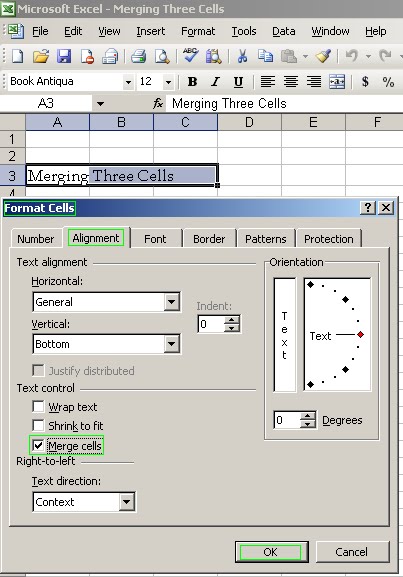
From the Format Cells window, select the “Alignment” tab & check the "Merge cells" checkbox. Press ok.

Merged Cell

Returning to the spreadsheet, it will be found that the selected cells are merged into a single cell.

Excel opens, but the file doesn't

During to open a previous worked *.xls file it would return an empty Excel workbook. If I then chose File, Open, and browsed to my document it would then open it. This is frustrating and time consuming.

This is because the problem to the file type associations in Windows XP. To resolution the problem follows the instruction.
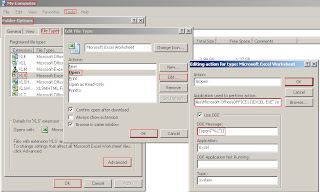
XLS File Association Resolution in Windows XP2

1. First, “My Computer” in Windows XP.

2. Click on the “Tools” menu, and choose “Folder Options”.

3. From the dialog that pops up, click the “File Types” tab. It will now represent a list of all document types recognized by your computer.

4. Scroll down to “XLS”, select it, and click the “Advanced” button. Now you'll see several "Actions" registered for Excel worksheets.

5. Usually, Open is the default (indicated by being in bold). Select "Open" and click the “Edit” button.

6. The main piece of data in here is the field labeled "Application used to perform action". This filed should contain exact the following command-line arguments :
"C:\Program Files\Microsoft Office\OFFICE11\EXCEL.EXE" /e

7. The “DDE Message” filed should contain exact the following command-line argument:
[open("%1")]
It is very important to make sure that the %1 is surrounded by quotes. %1 is the variable representing the full path and file name of the document you are opening.
"Use DDE" is normally checked.

8. Click Ok to close “Edit Action Type” window.

9. Click OK back at the “Edit File Type” dialog. Click further Ok on the Folder Options dialog.

That should fix the problem.

Disable warning message: "This page contains both secure and nonsecure items."

To disable the notification message-

Figure 5.1- Security Information

"This page contains both secure and nonsecure items." during visiting websites follow the instruction.

Figure 5.2- Diasable Mixed Content at IE

=> Open Internet Explorer.
=> Click on “Tools”.
=> Click on “Internet Options”.
=> Click on the “Security” Tab.
=> Click on the “Custom Level” button.
=> Under “Settings” Box look for "Display Mixed Content" in the “Miscellaneous” section.
=> Click on Disable for Display Mixed Content instead of Prompt.
=> Click on OK for two times.
=> Close Internet Explorer and reopen,the message should not appear now.
Enhanced by Zemanta

How to Open .docx, .xlsx, .pptx Files?

When you have an older version of MS Office (MS Office 200, Office XP, Office 2003) installed in your computer you will need a converter to open or edit files (*.docx, *.xlsx, *.pptx) created through MS Office 2007 & 2010. Microsoft has titled the name of converter as “Microsoft Office Compatibility Pack for Word, Excel, and PowerPoint File Formats”.

Download MS Office File Format Compatible Pack from here.

You can also convert the *.docx,*.xlsx,*.pptx files using the downloaded FileFormatConverters.exe through opening the files and saving the extension as *.doc,*.xls,*.ppt.

Making text links to another webpage!

Links are important issue to make bridge with another web page. We will learn the HTML/XHTML code & example to make a text link.

[] Making text link to open a target page in the same window

Code:-
< a href="target">TEXT HERE< /a>
Example:-
< a href="http://www.google.com">Google< /a>

Output will be: Google


[] Making text link to open a target page in new window

Code:-
< a href="target" target="_blank">TEXT HERE< /a>

Example:-
< a href="http://www.google.com" target="_blank">Google< /a>

Output will be: Google


Note: In order to copy/paste the code please ignore a space before "a" & "/a" both in Code & Example section.

Keyboard stops working after shift key held too long!

Pressing SHIFT KEY too long is useful sometimes like preventing auto login to login as another user. Improper use of the key may cause a problem like keyboard may stop working normally after run windows while it was working in bios mode. To resolve the problem follow the instruction:


Accessibility Options

 Go to Control Panel then double click on "Accessibility Options" by default "Keyboard" tab will appear on it.

Settings For Filterkeys


Click on "Settings" under "FilterKeys" tab then deselect "Use shortcut" option from "Keyboard shortcut" tab.

Settings For ToggleKeys


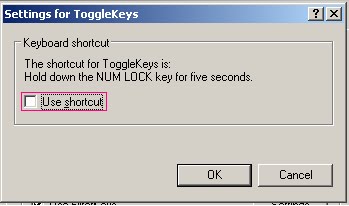
Click on "Settings" under "ToggleKeys" tab then deselect "Use shortcut" from "Keyboard shortcut".

Check the KEYBOARD and it should be work!!

Still KEYBOARD not responding? We need to perform a little additional task.

Deselect Filter & Toggle Keys Options


Uncheck the "Use FilterKeys" & "Use ToggleKeys" options from "Keyboard" tab on "Accessibility Options".
The KEYBOARD should work now.