Showing posts with label System Administration. Show all posts

The Volume Shadow Copy Service

[] What is Volume Shadow Copy (VSS)?

The Volume Shadow Copy Service is one of the hidden charms of Windows XP & Windows Server 2003 and dedicated to enhance Windows backing up solutions as well as a mechanism for creating consistent point-in-time copies of data known as shadow copies. The Volume Shadow Copy Service (VSS) is also termed as Shadow Copy & Volume Snapshot Service (VSS).

[] The purpose of using Shadow Copy is as follows:
  1. Creating consistent backups of open files and applications.
  2. Creating backup for shared folders. Shadow Copy works like a Recycle Bin for Network Share. With Shadow Copies for Shared Folders, users can quickly recover deleted or changed files that are stored on the network without administrator assistance, which can increase productivity and reduce administrative costs.
  3. Recovering and restoring files and data. The Volume Shadow Copy Service provides users with a way of restoring files themselves without having to involve administrator.
  4. Creating transportable shadow copies which allow importing facilities of data to the same server or a server connected to the SAN (Storage Area Network).  

Creating Shortcut for Shutdown, Reboot, Logoff, Standby, Hibernate!!

To create Shortcut for Shutdown, Reboot, Logoff, Standby, Hibernate follow the instruction.

[] Creating Shutdown Shortcut

1. Right click on an empty area on your Desktop.

Figure 11.1- Shortcut Creation Process

2. Select ‘New’>’Shortcut’.

Figure 11.2- Creation of Shutdown Shortcut

3. In the blank location box of the Create Shortcut Wizard, type ‘%windir%\System32\shutdown.exe –s’ without quote and Click ‘Next’.


4. Title the shortcut something like ‘Shutdown’ and click ‘Finish’.

Figure 11.4- Customizing Icon for Shutdown Shortcut

5. To customize icon, right click on this new icon, select ‘Properties’, click the ‘Change Icon’ button and select an appropriate icon.


[] Creating Others Power related Shortcut

To create shortcut for Reboot, Logoff, Standby, Hibernate Copy/Paste the following code in step 3 like above example:

Shutdown: %windir%\System32\shutdown.exe -s
Reboot: %windir%\System32\shutdown.exe -r
Logoff: %windir%\System32\shutdown.exe -l
Standby: %windir%\System32\rundll32.exe powrprof.dll,SetSuspendState
Hibernate: %windir%\System32\rundll32.exe powrprof.dll,SetSuspendState Hibernate

Disbale or Enable Hibernation in XP!!

In Windows XP to disable or enable hibernation we need to do the following task:

Figuare 10.1- Uncheck 'Eanble hibernation' to disable hibernation check it to enable

1. Open ‘Power Options’ from ‘Control Panel’.
2. Select the ‘Hibernate’ tab.
3. Uncheck the checkbox to disable hibernation Or check it to enable hibernation.

Reduce Windows XP Startup Time!

Windows (XP) startup performance depends up on various issues like system configuration, settings of software installed in the computer and hardware status of the computer. To improve Windows XP startup performances following instruction would be helpful.


1. Thin Startup Section

MSCONFIG

Write msconfig on Run wizard & press enter System Configuration Utility will appear.


UNCHECKING STARTUP PROGRAM
 From the Startup tab uncheck all programs without antivirus. This tip may help a great for some one to reduce startup time who has installed a number of heavy programs in the system and those programs are running as a startup service.


Note: Unchecking the program from startup section will not effect on normal use.


2. Clean Out Viruses

Running an antivirus with automatic updates will try to keep your system secure. Most of the cases viruses make slow down computer & windows return unusual behavior. If you have not installed an antivirus in your system please install & make a scan. To get a free antivirus please visit oneof the following link.

=> Download Avast.
=> Download Avira
=> Download AVG Free


3. Perform a Scan Disk


CHKDSK

chkdsk %systemdrive% /f
On command prompt type the above command & press enter. This will keep your Computer system drive in Healthy Condition and it helps Computer run faster. This will lead to reduce startup time.


4. Remove Unnecessary Software

From Control Panel > Add/Remove Software section uninstall unused software like toolbars, file-sharing programs, free email enhancers, online shopping "companions" and download managers that were automatically installed when you downloaded some other packages for your system.


5. Edit Network Service

To reduce startup wait time to get windows usable/stable faster after booting up Windows XP we need to look on some network services specially for those computers which are not acting as a server(Printer Sharing, File Sharing). After booting up the Computer Windows XP’s Networking Services are looking for other computers and advertising their functions over the network. This is a reason behind time delay to start program immediately/normally after boot up computer. The following tips will be useful to reduce /eliminate the problem.

[] When Computer is not connected with LAN
Disable the Workstation service.
To disable Workstation service follows the instruction.
Right click on ‘My computer’ and select ‘Manage.’

DISABLEING WORKSTATION SERVICE

Expand ’Services and Applications’ and select ’Services’ to open the services window. Highlight the ‘Workstation’ service, right click and select ‘Properties.’ Set the ’Startup type’ from drop down box to ‘disabled.’ Click ‘Ok.’

Note: You will need to re-enable the Workstation service when the Computer will be connected with network in future.


[] When the Computer is connected with LAN
Disable ‘File and Print Sharing’ options unless the computer is a ‘File and Print Sharing’ server.
To do that go to ’Start > Control Panel > Network and Internet Connections > Network Connections. ’ Right click on ‘Local Area Connection’ and select ‘Properties.’ Uncheck the ‘File and Print Sharing’ box and press ‘Ok.’

Note: This will disable the Files & Printer share ability on the local computer but it will not effect to access files & printers that is shared over network.


7. RAM & Virtual Memory Settings
RANDOM ACCESS MEMORY

While the computer runs out of Physical Memory (RAM) then Windows will check on hard disk to create virtual memory. This is a nice feature, because it allows application programs to access sufficient amounts of memory though Virtual Memory is little slower than RAM. So installing optimum RAM according to the system board accommodation is a good idea to boost the overall system performance than anything else.

CUSTOMIZATION OF VIRTUAL MEMORY


For Virtual Memory, it can be customized from Control Panel > System > Advanced, then press the Settings button under Performance. Click Advanced again, and then press the Change button under Virtual Memory. Set the new entered custom size to get effect.

Completing all these process reboot the computer. The Windows XP startup time should be improved from earlier.

Disable warning message: "This page contains both secure and nonsecure items."

To disable the notification message-

Figure 5.1- Security Information

"This page contains both secure and nonsecure items." during visiting websites follow the instruction.

Figure 5.2- Diasable Mixed Content at IE

=> Open Internet Explorer.
=> Click on “Tools”.
=> Click on “Internet Options”.
=> Click on the “Security” Tab.
=> Click on the “Custom Level” button.
=> Under “Settings” Box look for "Display Mixed Content" in the “Miscellaneous” section.
=> Click on Disable for Display Mixed Content instead of Prompt.
=> Click on OK for two times.
=> Close Internet Explorer and reopen,the message should not appear now.
Enhanced by Zemanta

How to Open .docx, .xlsx, .pptx Files?

When you have an older version of MS Office (MS Office 200, Office XP, Office 2003) installed in your computer you will need a converter to open or edit files (*.docx, *.xlsx, *.pptx) created through MS Office 2007 & 2010. Microsoft has titled the name of converter as “Microsoft Office Compatibility Pack for Word, Excel, and PowerPoint File Formats”.

Download MS Office File Format Compatible Pack from here.

You can also convert the *.docx,*.xlsx,*.pptx files using the downloaded FileFormatConverters.exe through opening the files and saving the extension as *.doc,*.xls,*.ppt.

Keyboard stops working after shift key held too long!

Pressing SHIFT KEY too long is useful sometimes like preventing auto login to login as another user. Improper use of the key may cause a problem like keyboard may stop working normally after run windows while it was working in bios mode. To resolve the problem follow the instruction:


Accessibility Options

 Go to Control Panel then double click on "Accessibility Options" by default "Keyboard" tab will appear on it.

Settings For Filterkeys


Click on "Settings" under "FilterKeys" tab then deselect "Use shortcut" option from "Keyboard shortcut" tab.

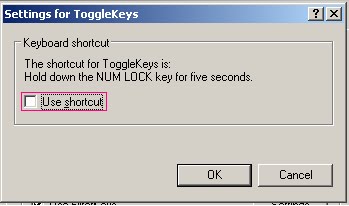
Settings For ToggleKeys


Click on "Settings" under "ToggleKeys" tab then deselect "Use shortcut" from "Keyboard shortcut".

Check the KEYBOARD and it should be work!!

Still KEYBOARD not responding? We need to perform a little additional task.

Deselect Filter & Toggle Keys Options


Uncheck the "Use FilterKeys" & "Use ToggleKeys" options from "Keyboard" tab on "Accessibility Options".
The KEYBOARD should work now.